

2026 User Group Summit Highlights
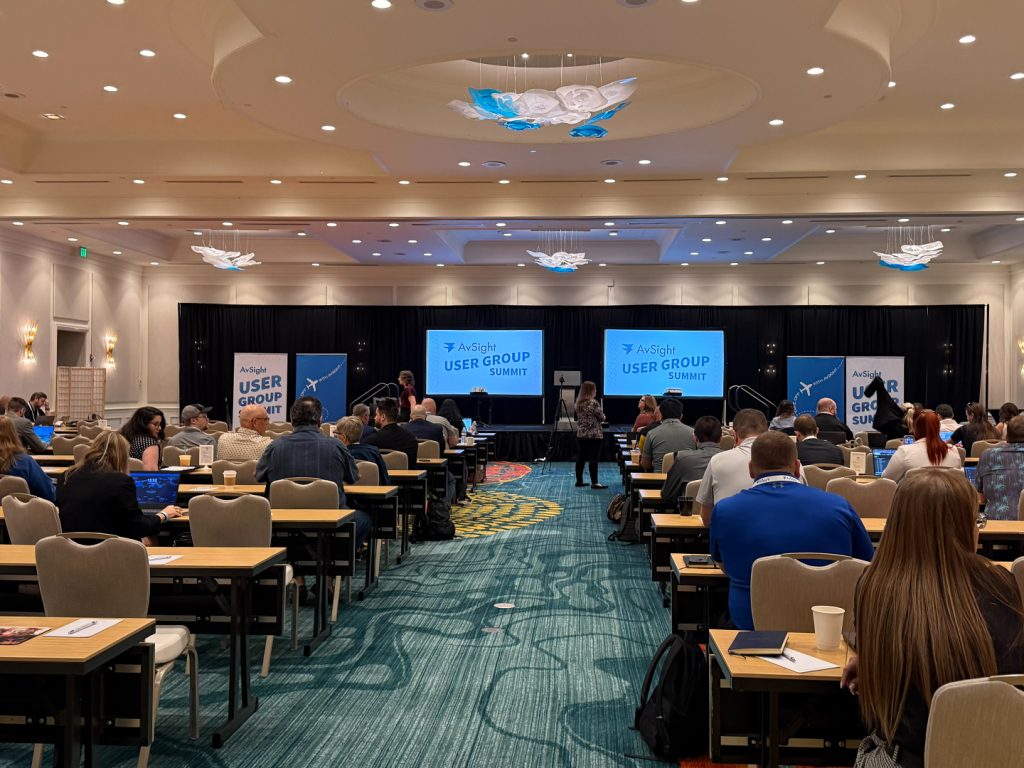
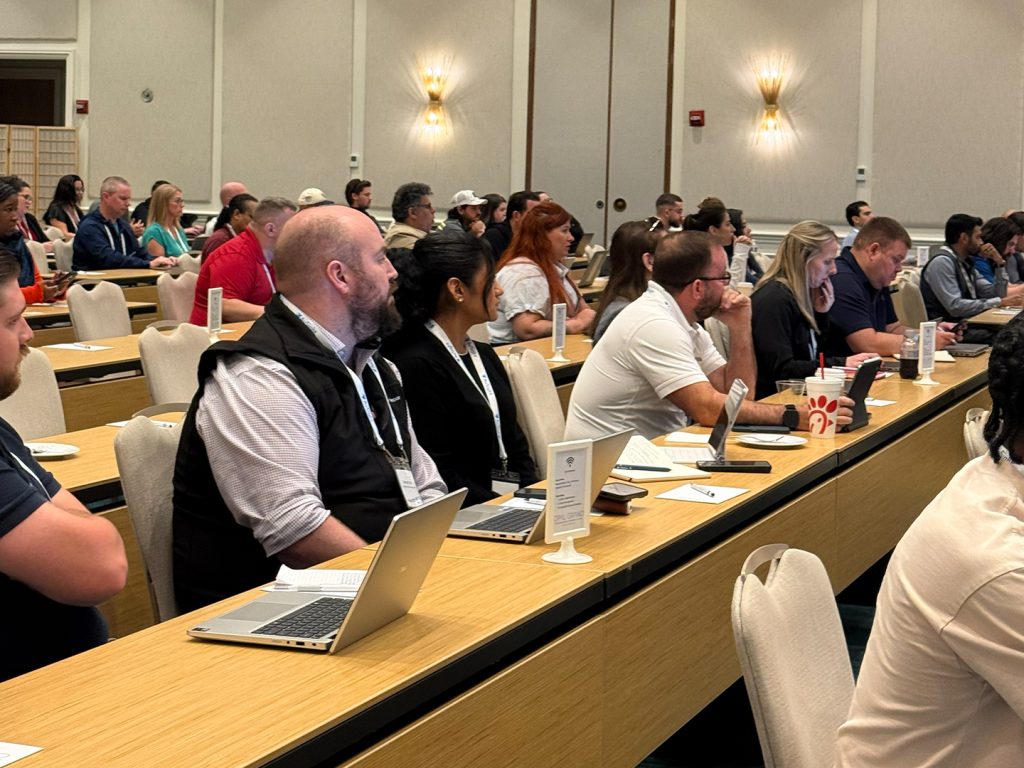
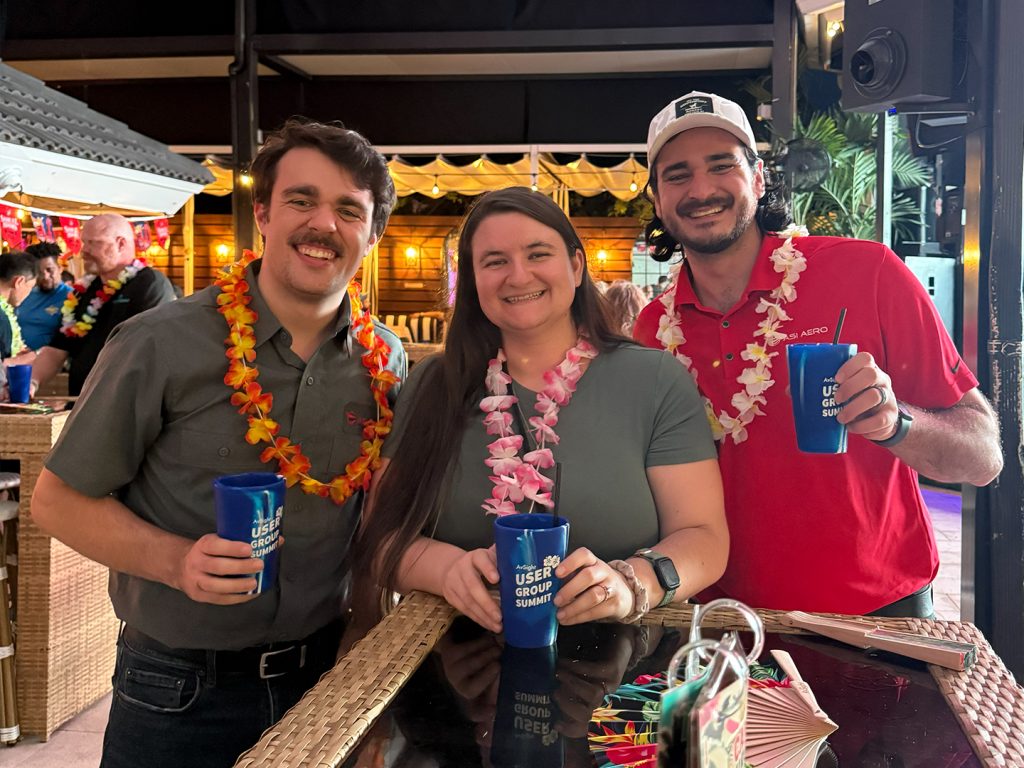
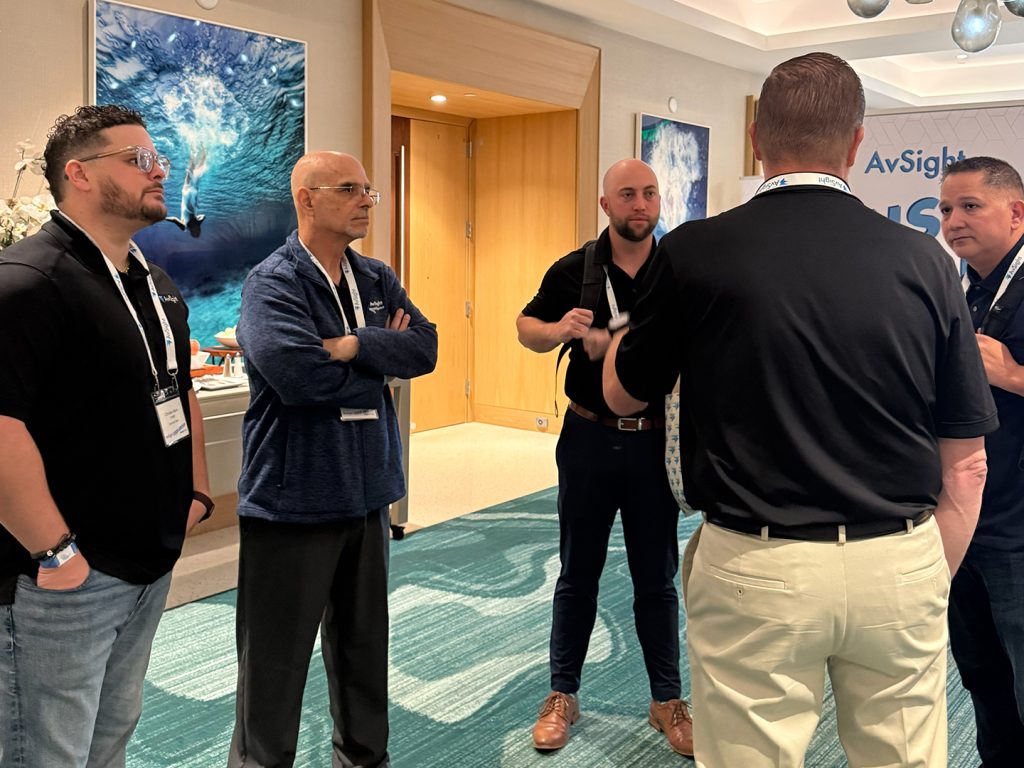
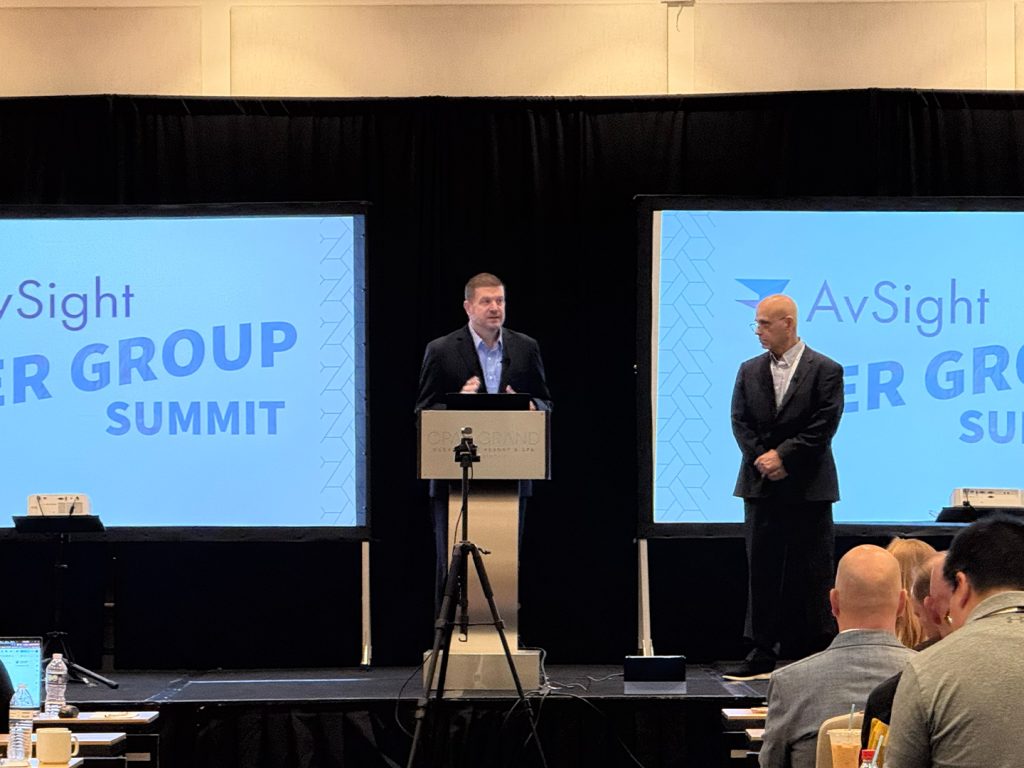
The 2026 AvSight User Group Summit is officially in the books, and what a week it was! For three days in Delray Beach, our customers and team came together to share best practices, trade ideas, and dig into what’s next for AvSight. Every year you find new ways to put the system to work for your business, and this year was no exception. Hearing how you’ve shaped AvSight around your operation, the problems you’ve solved, and where you want to take it next is what makes this event so special. Here’s a look back at some of our favorite moments, straight from the people who were there.

Sessions Highlights
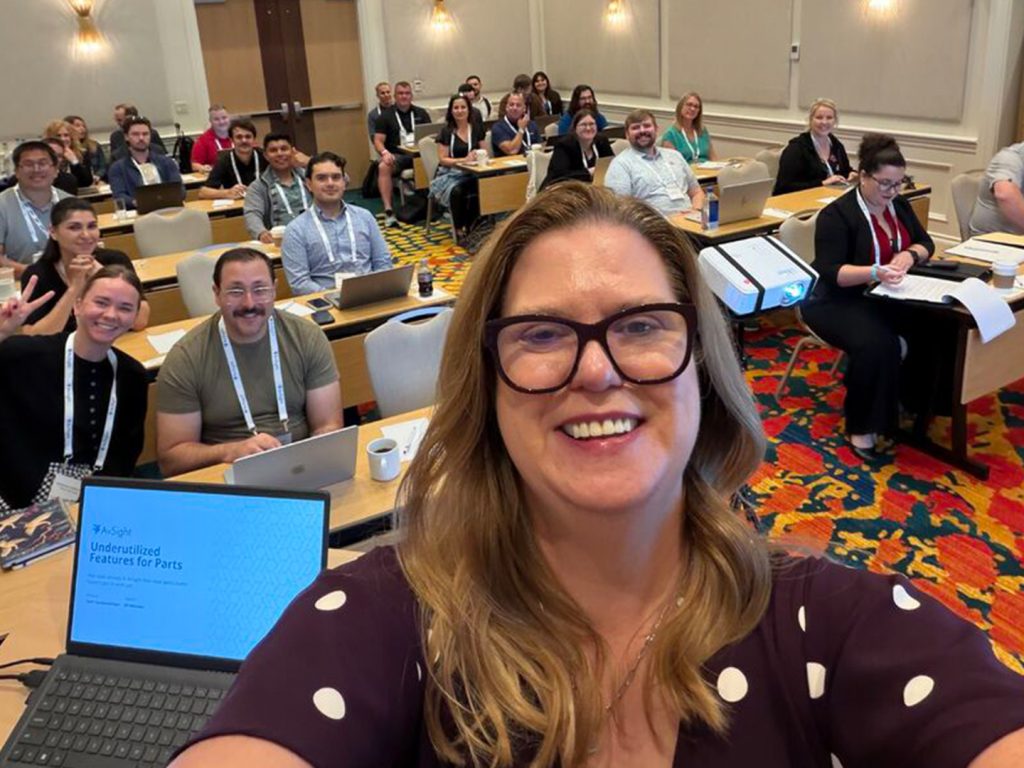
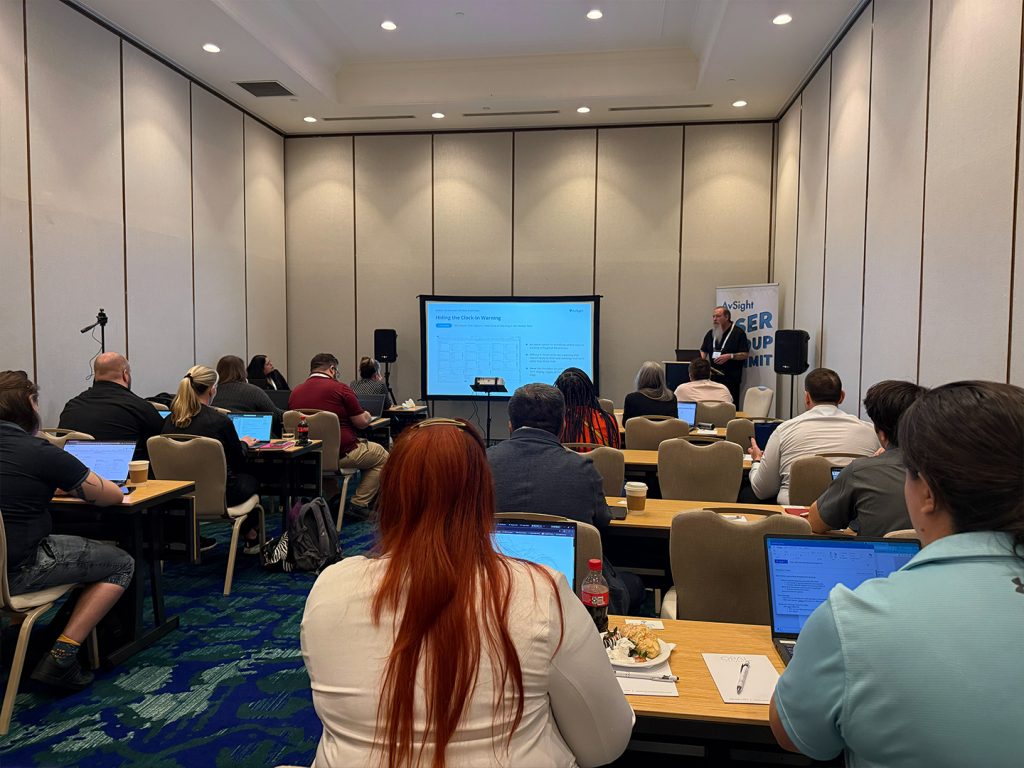
With 44 sessions and roundtables on the agenda, there was something for every team, from newer users to longtime customers. Here are a few that had everyone talking.
Our Parts Sales sessions with Terri VanderSchuur were a highlight for so many attendees. Terri covered what’s new in Parts, the features parts teams tend to overlook, and the tricky situations that come up with owner codes, consignments, RMAs, and exchanges. What’s New in Parts? kept the questions coming from start to finish, and the Parts Roadmap session gave everyone a look at what’s ahead.
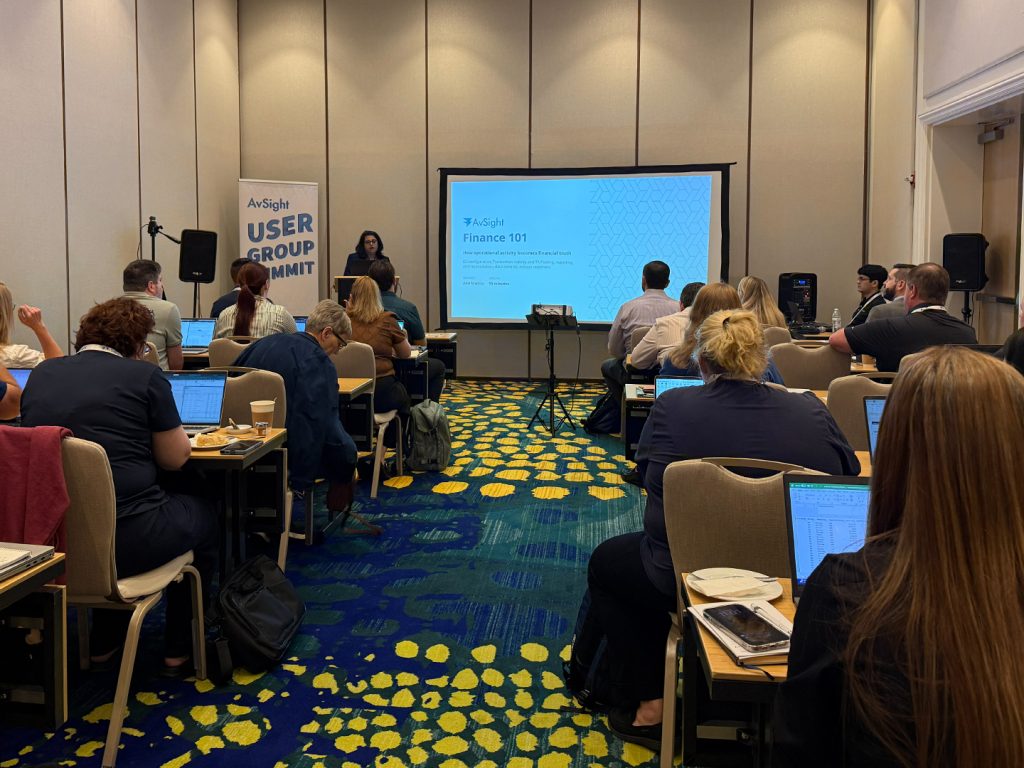
On the MRO and finance side, Dave Miller and Ann Martin led sessions on everything from Finance 101 and Materials & BOM Management to Work Order & Work Package Admin Settings. Ann also hosted an open Ask Ann Anything hour where finance teams could bring their toughest questions. Attendees loved leaving with practical, real-world answers they could put to use right away.
Want to dig a little deeper? Open the sessions below for highlights and resources from a few of this year’s most popular sessions.
Getting Started with AvSight Intelligence
For customers using AvSight Intelligence or thinking about adding it, Scott Loescher, Lisandra Martinez, and Fermin Gonzalez walked through what’s live today and how to get a first workflow running quickly. Their biggest point was that the hardest part usually isn’t the technology. It’s knowing where to start.
- Start with your costliest problem. Pick the one workflow taking up the most of your team’s time. If reps are retyping RFQs from email, start with Smart Inbox. If quotes land on the wrong desk, start with Routing. If you’re declining requests one email at a time, start with No Quotes and Make Offers. If receiving is still manual, start with the Docking Agent.
- Begin from a Blueprint. Instead of designing every step from scratch, import a pre-built configuration for a business like yours and adjust it. That’s what turns weeks of setup into days.
- Rules first, AI when ready. Your first instruction can be a simple if-then rule written in plain English that your team fully understands. Layer in AI once you trust the results.
- Start in review mode. Let your team approve actions before they run. Once you’re approving nearly everything, you can let more run on its own.
- Stay in control. You decide where a person signs off, and every action is logged with what it did and why. Customer data is never stored or used to train models.
Your next step? Pick your first workflow, import a Blueprint, or book a follow-up conversation with your AvSight team.
Keep learning with these Knowledge Base articles. AvSight Intelligence Overview, and Configuring Smart Inbox.
Underutilized Features for Parts
Terri covered five tools that are already in AvSight but many teams may not be using yet. There’s no upgrade or purchase needed, just knowing where to find them.
- Workspaces. Build your parts analysis on the Part 360 metrics already loaded in AvSight, so it follows the parts you’re working on instead of starting from a separate query. Before a rep builds their first workspace, confirm their permission set allows field creation so it works the first time.
- Process dashboards. Spot a stalled deal or order before the customer has to ask about it. Reps can see their own pipeline and managers can see the team’s from the same dashboard. The habit that makes it work is checking often enough to catch a stall in days, not weeks.
- Mobile tools. Mobile is built for the work that happens away from the desk, including receiving, stocking, picking, transfers, cycle counts, imaging, shipping, and delivery, with updates syncing back without extra steps.
- The Hierarchy tab. Get a more detailed view of every line on an order, including how it ties to allocations and releases. It’s easy to overlook because it isn’t part of the typical sales flow, so it’s worth making a habit of checking it.
- Repair Reserve. A sales order line can be allocated four ways, against a purchase order, a repair order, general inventory, or a repair reserve. When the line needs a part tied to a specific repair order, a repair reserve is the right choice. The Repair Reservations screen keeps those requests organized with configurable fields, sortable columns, and repair comments you can edit right in place.
Terri’s advice? Pick one feature to try first, then share what you learn with your team.
Keep learning with these Knowledge Base articles. Using Workspace for Analytics, Part 360 Metrics, Mobile Stocking, and Mobile Delivery.
Materials & BOM Management
Dave Miller followed one BOM from creation, through allocation to a job, and back again at turn-in, showing how planning, warehouse, and floor teams all work from the same record.
- Build the BOM to match the job. Accuracy problems almost always trace back to this step. Reflect the parts and quantities the job actually needs, not a rough copy of last time.
- Connect it to the work. A BOM tied to the work order or job card it supports keeps planning, inventory, and operations on one version instead of several that drift apart.
- Allocate to the BOM. Over-allocating ties up inventory and under-allocating leaves the job short. Materials Management shows requested, allocated, issued, and remaining quantities side by side.
- Record what comes back. Log unused parts against the task along with the reason they weren’t used. A pattern of extras is a sign the BOM quantity needs another look.
- Get condition codes right at turn-in. The condition code decides whether returned material is restocked, repaired, or scrapped, so a miscode shows up later as an inventory accuracy problem.
- Zero out instead of deleting. If you no longer need a BOM line that already has history, set the quantity to 0 instead of deleting it, so the audit trail stays intact.
- Read the return prompt carefully. When AvSight asks whether to reopen the returned quantity on the BOM, choose Yes only if you need replacement parts. Choose No if you’re just sending extras back.
Before your next job kicks off, confirm the BOM, its work order alignment, and the right users’ access are all set before material starts moving.
Keep learning with these Knowledge Base articles. Creating BOMs, and Returning Unused Parts to the Warehouse.
Reporting in AvSight Part II, Advanced Reporting
In Part II, Ken Wilson and Ann Martin took reporting a step further, showing how to answer questions that need more than one report. Their example compared customer demand with supplier activity, a challenge many parts teams know well.
- Joined reports. Put customer quotes, supplier RFQs, and inventory side by side, grouped by part number. One view shows where there’s demand without supply, supply without demand, and parts with both.
- Cross filters. Shift the question from what you have to what you’re missing, like suppliers with open RFQs who haven’t responded yet.
- Simple calculations. Fields like age, days open, and percentage of pipeline help the exceptions stand out. Keep formulas simple so the business question stays clear.
- Exception reports for leadership. Instead of showing management everything, filter to high-value quotes past an age threshold so the report points straight to what needs attention.
- Know the limits. If the data isn’t in the report type or a formula is getting hard to maintain, the right answer may be a different report, process, or tool.
Try it this week. Pick one question from your own AvSight environment, like which quotes need attention, and work backward from the decision you need to make to the report that answers it.
Looking for more reporting tips? Watch Terri’s Work Smarter webinar, Work Smarter with AvSight – Flows & Reports.
Finance 101
Ann Martin’s Finance 101 session focused on one goal, being able to trace any number in your accounting system back to the action in AvSight that created it.
- Get your GL setup right. AvSight checks the most specific GL account for a transaction first, then falls back to your Company Default GL Accounts. Those defaults are required, so make sure they’re filled in.
- Read TAs and TAPs together. The Transaction Activity shows what happened, and the TA Posting shows what your accounting system was told.
- Follow the trail in order. When something looks off, start at the source transaction, open its TA, review the TAP lines, and then compare the amount in your accounting system.
- Check the filters first. Operational reports show what’s happening right now, while accounting reports show a set period. When the two don’t match, they’re usually just answering different questions.
- A blank isn’t zero. A blank Exchange Part Writedown inherits the Company Master setting, so enter 0% when you don’t want a writedown.
- Correct through AvSight. Reversing or correcting through the AvSight workflow keeps the audit trail intact, while a fix made only in the GL breaks it.
- Keep a simple rhythm. Review errors daily, exceptions weekly, and reconcile to the GL at month end. Before each release, test the Parts, MRO, return, and integration flows you rely on in a sandbox.
Keep learning with these Knowledge Base articles. Understanding AvSight TAs and TAPs, AvSight Default GL Accounts, and Connecting QuickBooks to AvSight.
Learning from Each Other
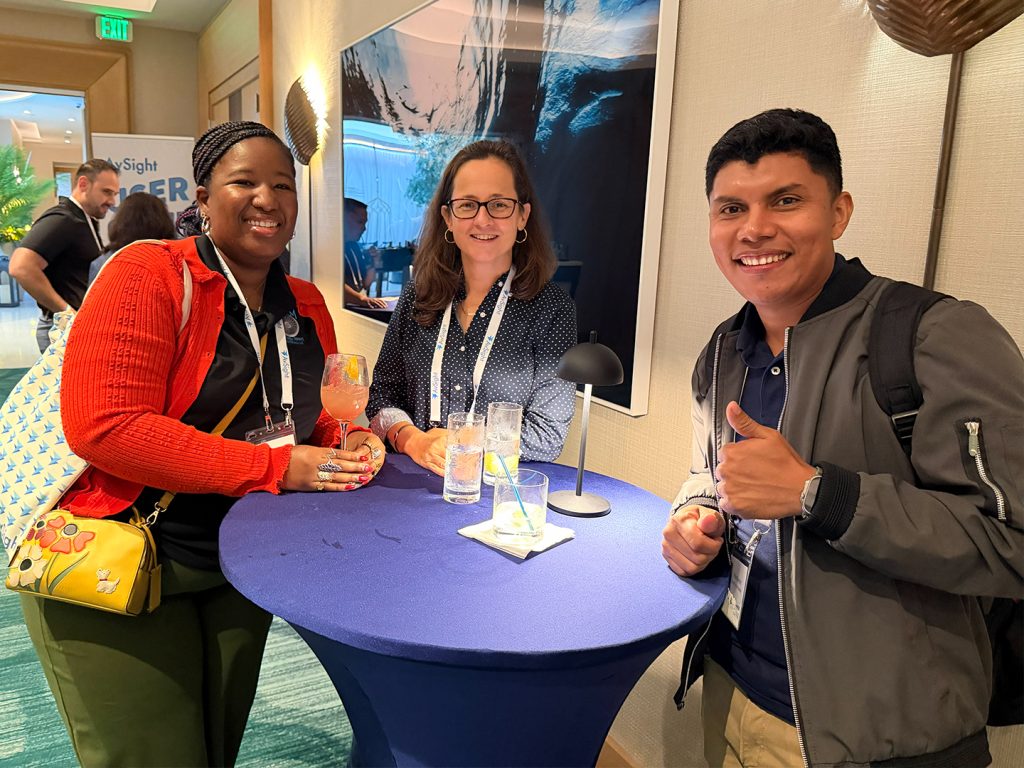
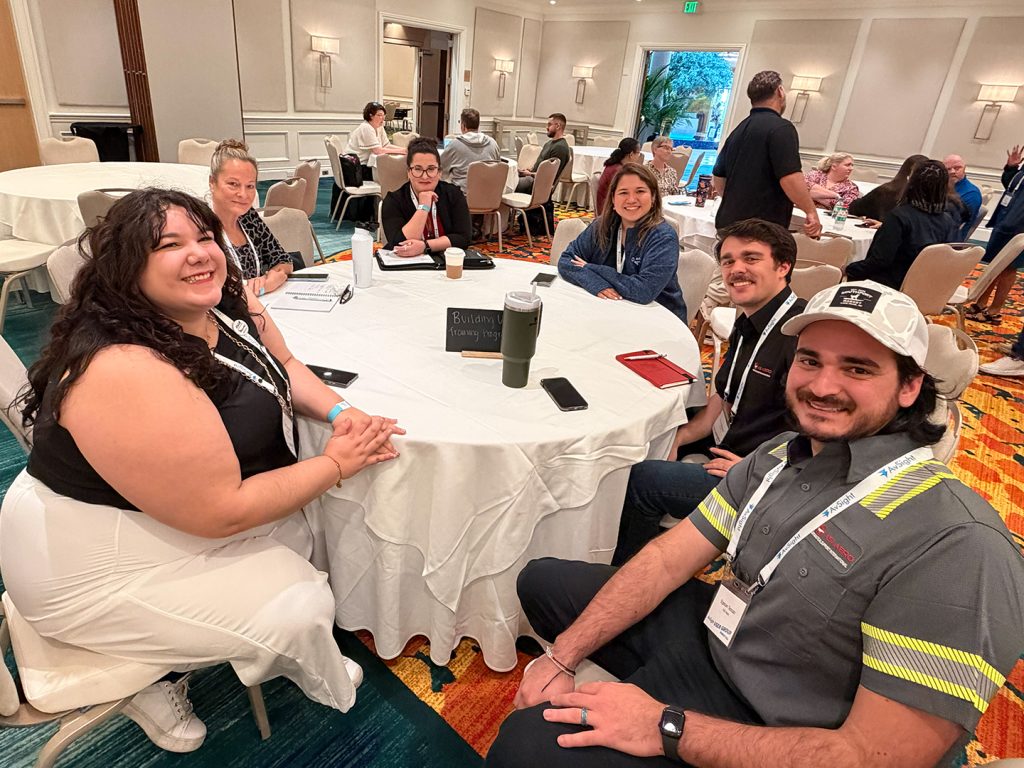
Some of the most valuable moments happened outside of the sessions. We planned every part of this year’s Summit with our customers in mind, from the schedule to the roundtables to the time set aside for one-on-one conversations, so you’d have plenty of chances to connect with each other and with our team.
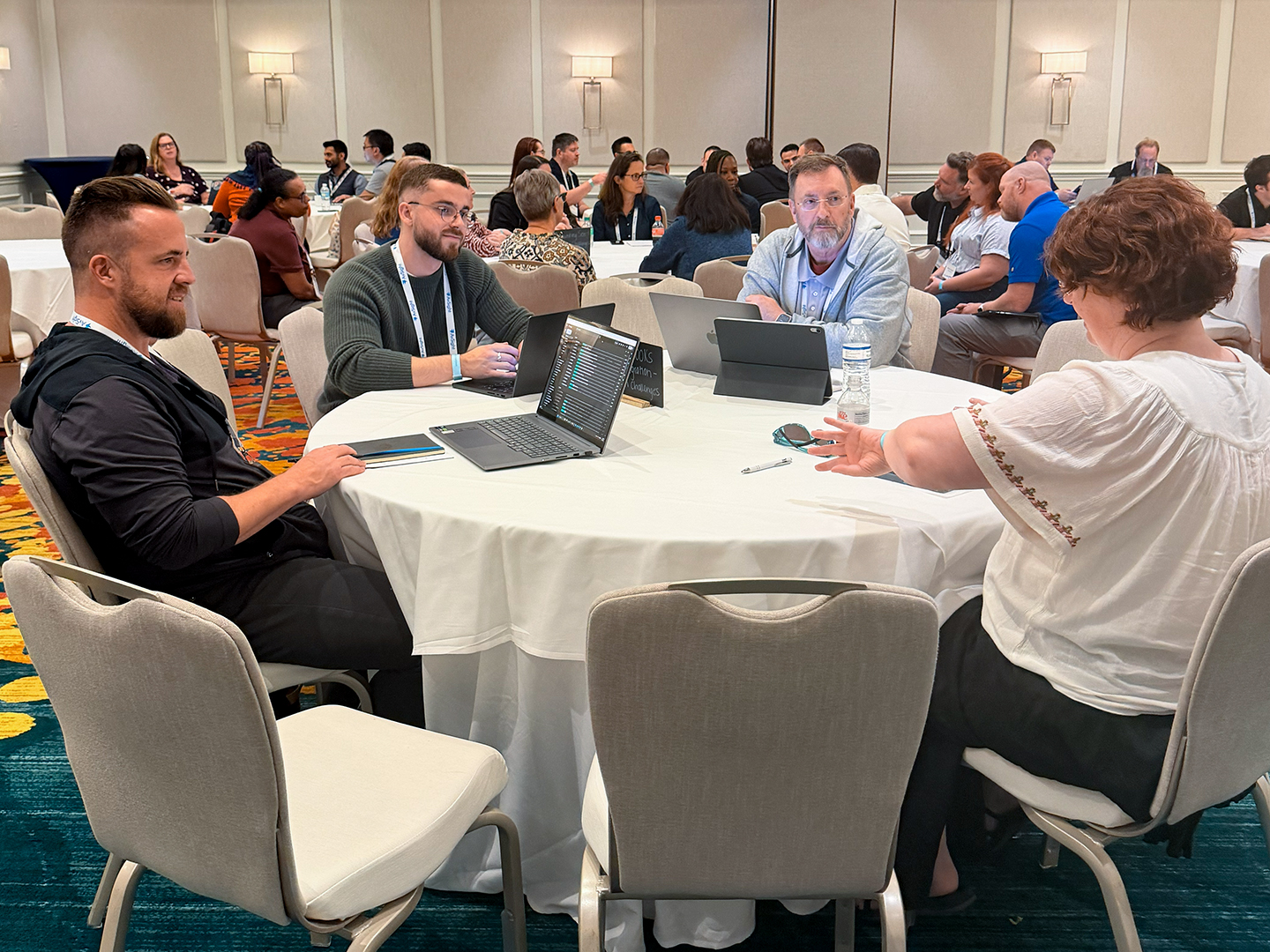
The roundtables were a great example. Attendees gathered in small groups to talk through Accounting Seed, QuickBooks Integration, MRO, troubleshooting, AI strategy, and building user training programs. These conversations gave everyone a chance to compare notes, hear how other companies handle the same challenges, and leave with new ideas to try back at the office.
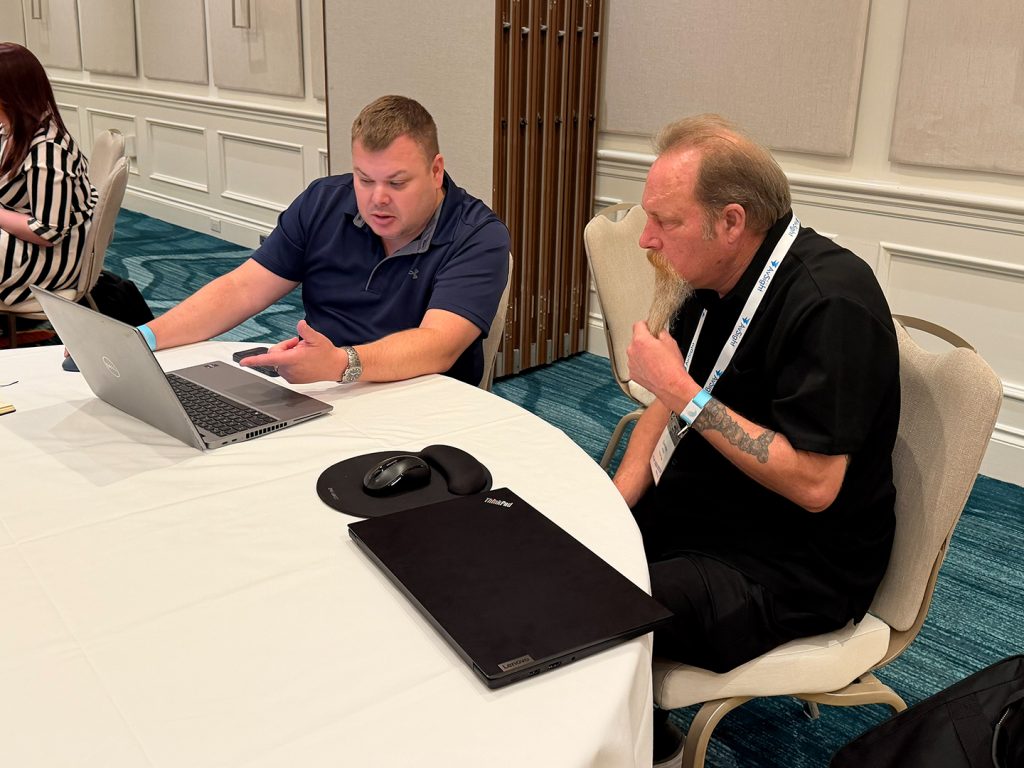
Our team also offered Ask an Expert appointments throughout the event, so you could sit down one-on-one and work through questions about your own setup. Having our product, support, and services teams onsite meant we could troubleshoot together, listen to your feedback, and hear your ideas for making AvSight even better.
“The round table sessions were helpful to compare notes with the other people in attendance to see what we all learned in the sessions.”
Finance / Accounting
“The team members we interacted with come from aviation backgrounds, which makes a significant difference when discussing the system, our operational requirements, and the challenges associated with implementing an ERP within an aviation MRO environment.”
Purchasing
“I enjoyed getting to meet with people in the industry also using the system so we could find new ways to improve it.”
Finance / Accounting
Networking & Connecting
The Summit wasn’t all business. We kicked off the week with a Welcome Reception, and on Tuesday night we took over Throw Social for the Attendee Party, complete with food, games, and great company. Throughout the event, the Brella app made it easy to plan your schedule, message other attendees, and set up one-on-one meetings.
“The conversations I had with other AvSight users and peers were the highlight of this year’s event for me. The best discussions happened after hours …”
System Admin / IT
“The sessions provided great information that I will be able to use daily and the brella app really helped stay organized and plan my day.”
System Admin / IT
Thanks for a Great Event
The User Group Summit wouldn’t be possible without our incredible customers and team. TThank you to everyone who showed up ready to share and learn, and to all of you who took the time to tell us about your experience. Your feedback is already shaping our plans for next year, and we’re excited to keep building an event that helps you get even more out of AvSight. We can’t wait to see you in 2027!
Want to keep learning before next year’s Summit? Join us for an upcoming Work Smarter webinar, and sign up for event updates to be the first to hear about 2027.
Explore AvSight
Empower your sales team to close deals faster, enable your finance team to achieve error-free compliance, and give your operations team real-time visibility to enhance turnaround times. Discover how AvSight aligns every team to drive success!
Request A Demo